🧪Live demo · 12-check automated test suite

See FileNest organize 50 files in 8 scenarios.

Auto-generated test sandbox with 32 photos, 4 duplicate groups, 3 large junk files, empty folders and a stale/recent file. Walks through every feature end-to-end — click any scenario below to see the captured result.

No test report yet — run the suite below.
FileNest · Drive scan & dashboardScan
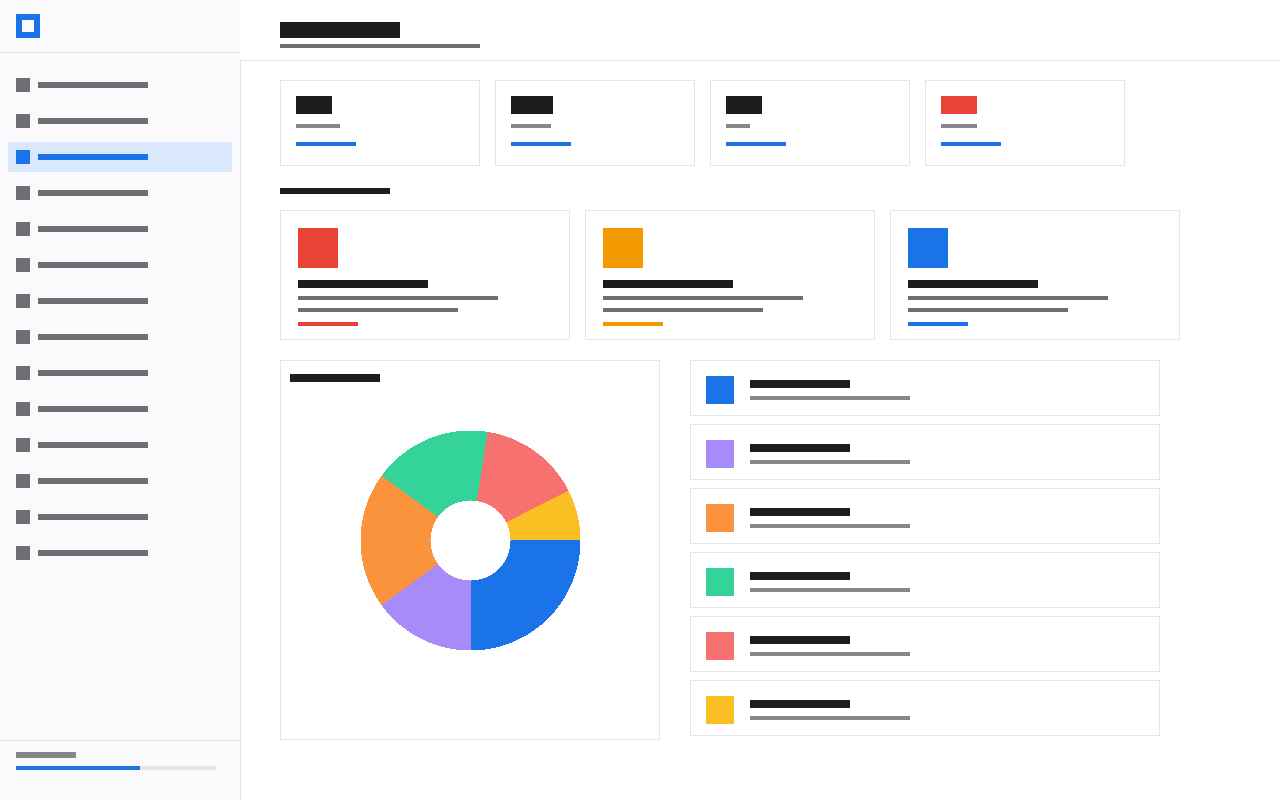
Drive scan & dashboard
Steps
  1. 1Launch FileNest. Verify sidebar shows Home with no scan yet.
  2. 2Click Pick Folder → select tests/fixtures/sandbox/.
  3. 3Wait for scan (~5 s).
  4. 4Land on Dashboard.
Expected
  • Total files: ~50
  • Total size: ~330 MB (±5%)
  • Pie chart: Images / Documents / Others
  • Most-Recent entry in sidebar footer
Setup: Sandbox generated by `npm run test:fixtures`

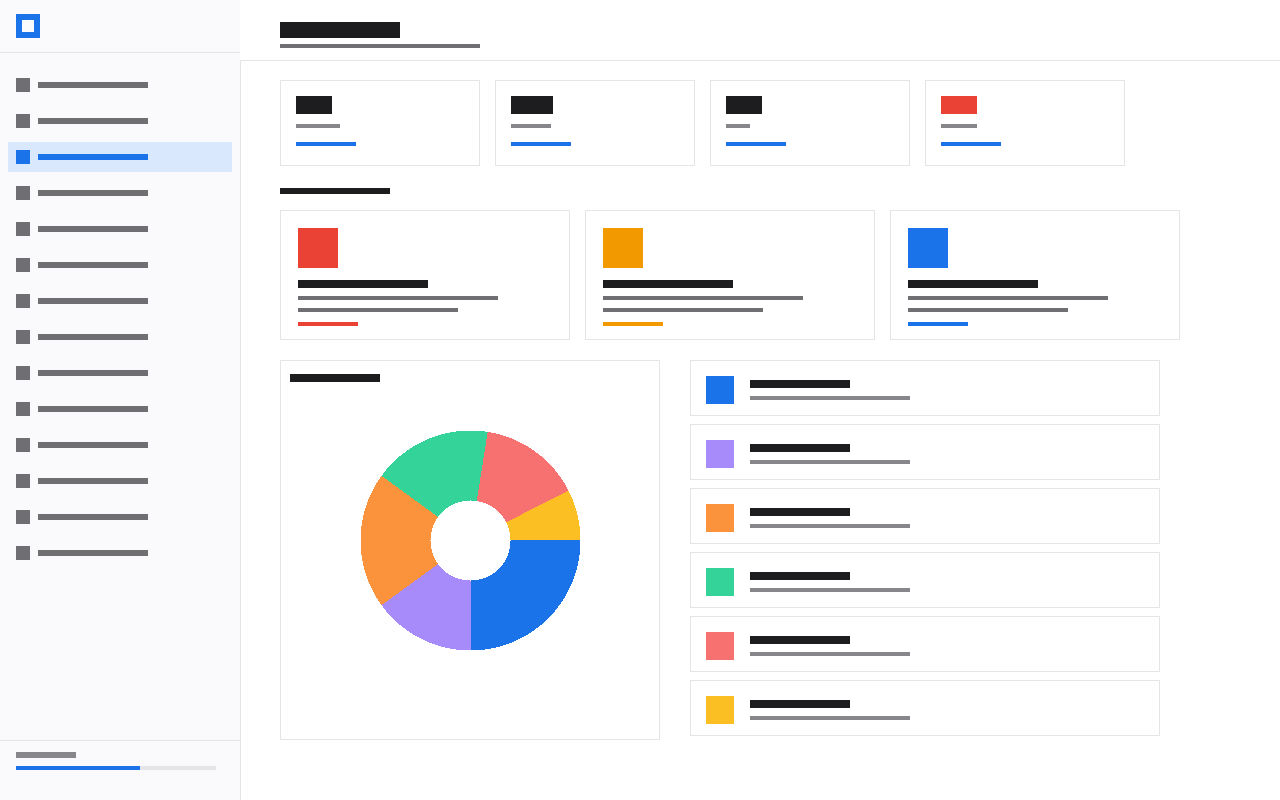
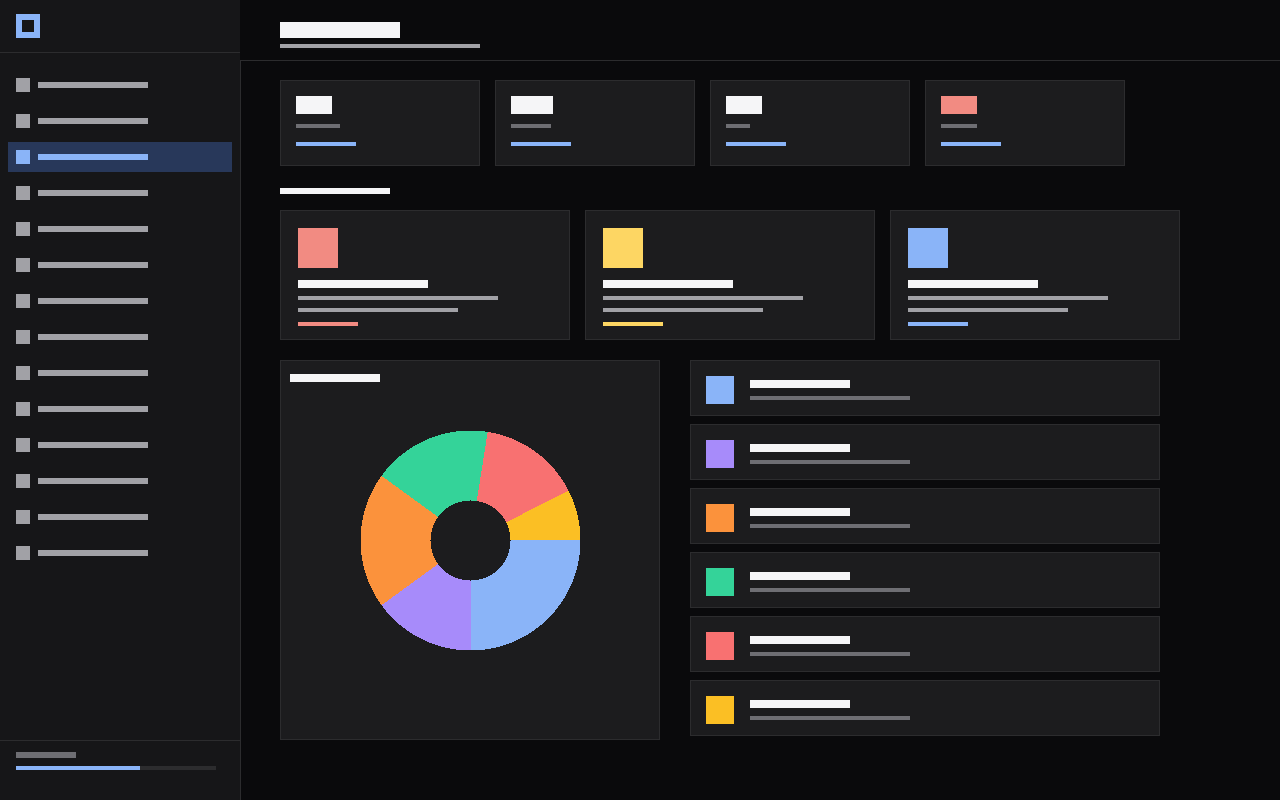
Light and dark — every component.

Toggle anywhere — sidebar header, settings page, system preference. All 14 pages stay readable.

Light · default
Light · default
Dark · Apple Photos style

Three commands. Live demo on your machine.

From a fresh checkout of FileNest. Generates test data, captures placeholder screenshots, verifies 12 invariants. Replace placeholders with real screenshots after walking through the app.

1.npm run test:fixtures44 files · 346 MB · runs in <1s
2.npm run test:screenshots10 PNG files written to site/public/demo/
3.npm test12 checks · writes tests/last-run.json
All-in-one.npm run test:fullEquivalent to running all three above
Manual walkthrough

After running the commands above, install FileNest_0.6.0_x64-setup.exe, click Pick Folder, and select FileNest/tests/fixtures/sandbox/ — then walk the 8 scenarios above. Capture each result as a PNG matching the listed filename and drop into site/public/demo/. The page below auto-loads whatever you put there.